• Menu
  • Skip to primary navigation
  • Skip to main content
  • Skip to footer

COFESS

City of Faith Employee Self Service

  • Company Info
    • Core Values
    • Employee News
    • Benefits
    • Company Awards
  • Training
    • Annual Training
    • Cyber Security Training Login
  • Forms Bureau
    • BOP Documents
    • City of Faith Policies
    • General
    • HR & Accounting
    • Maintenance
    • Security
  • Forms Bureau
    • Case Manager
    • EPS & HC
    • Security
  • Policies, Process, IR Archives
    • FaithWorks: Processes
    • IR Archives
    • Policy & Procedures
    • IT Policies
  • My Profile
  • SUBMIT A TICKET
  • Company Info
    • Core Values
    • Employee News
    • Benefits
    • Company Awards
  • Training
    • Annual Training
    • Cyber Security Training Login
  • Forms Bureau
    • BOP Documents
    • City of Faith Policies
    • General
    • HR & Accounting
    • Maintenance
    • Security
  • Forms Bureau
    • Case Manager
    • EPS & HC
    • Security
  • Policies, Process, IR Archives
    • FaithWorks: Processes
    • IR Archives
    • Policy & Procedures
    • IT Policies
  • My Profile
  • SUBMIT A TICKET

Mblox IT

Tech Tuesday Series 3 Part 2: Forms Forms Everwhere Are Forms

01/03/2024 By //  by Mblox IT

Announcements

  1. Final Teams Training will be next week a few of you have been instructed to meet with me when I travel next Month
  2.  If there is something you’d like covered for Tech Tuesday submit a request and we’ll add it to the list of future topics.
  3. Did you know that Computer Classes are available in your area at the local library? If any of the technology (Especially Word, Email, or Teams) is difficult I strongly recommend you sign up for assistance.  They are free and can be a big help.
    1. Monoe https://oplib.org/computer-classes
    2. Little Rock https://cals.org/tech-classes
    3. Baton Rouge https://www.ebrpl.com/libraryservices/programsclassesevents.html

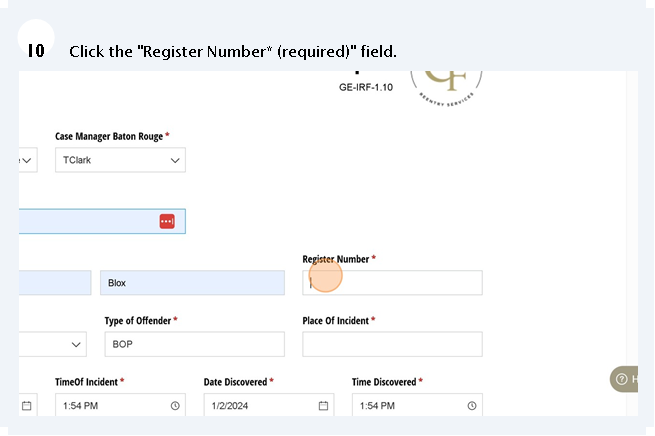
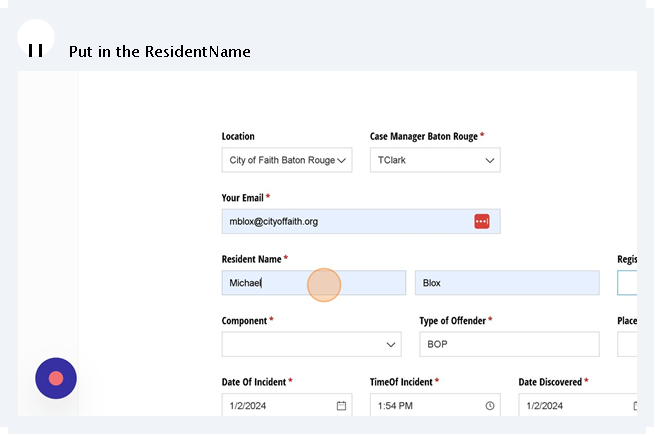
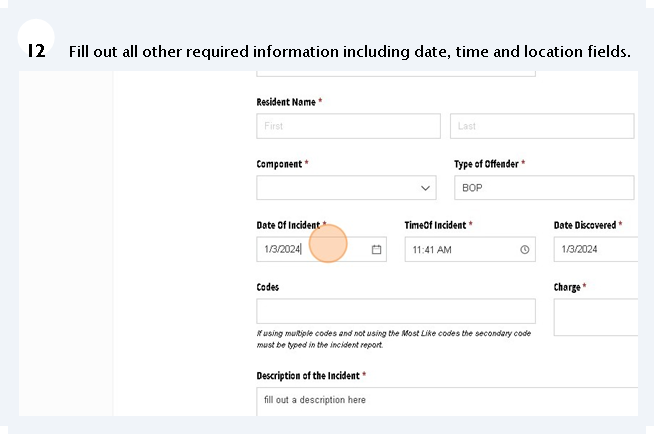
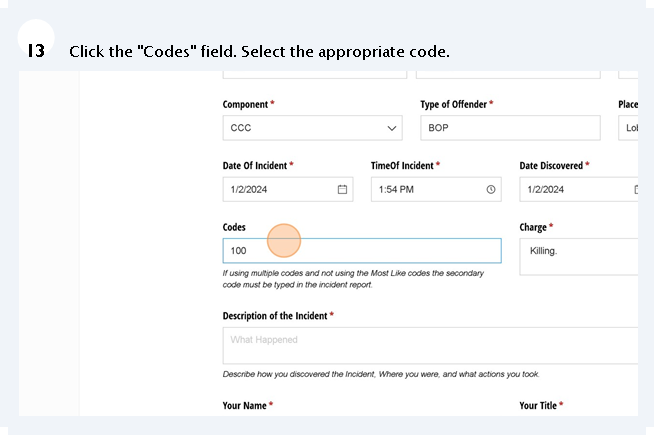
In this Weeks Tech Tuesday we’ll take the time to focus on the Forms we use regularly. The Movement Sheet, The Incident Report, and The Search Log. These Forms all are used almost daily and make up a large piece of what we do.

TABLE OF CONTENTS

  • Movement Sheets
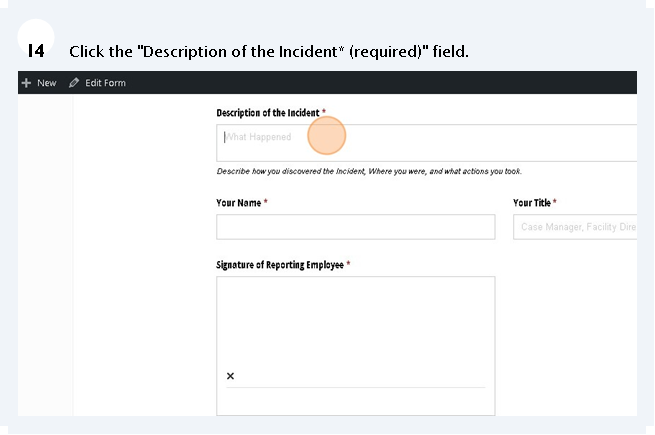
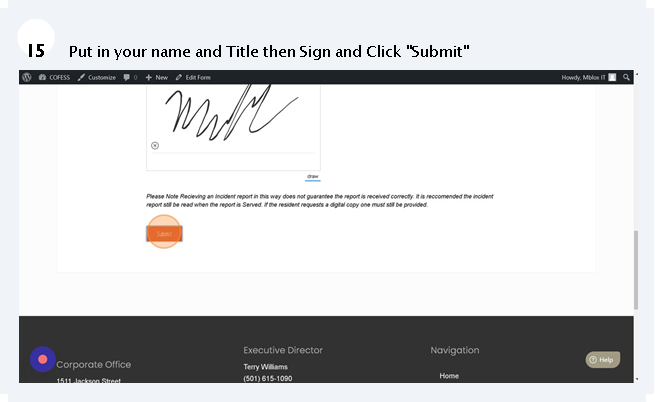
  • The Incident Report
  • The Search Form
  • Finally


Movement Sheets

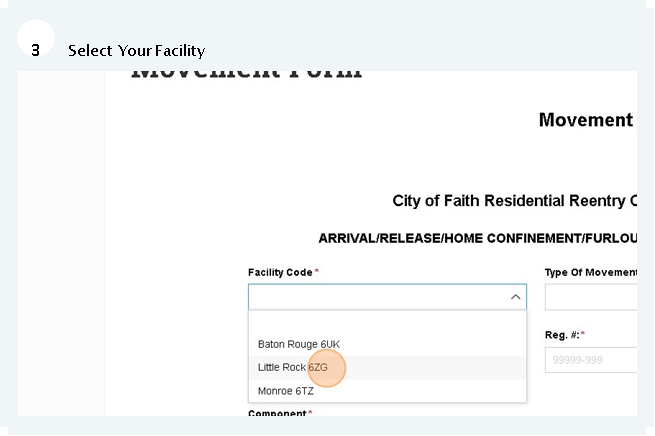
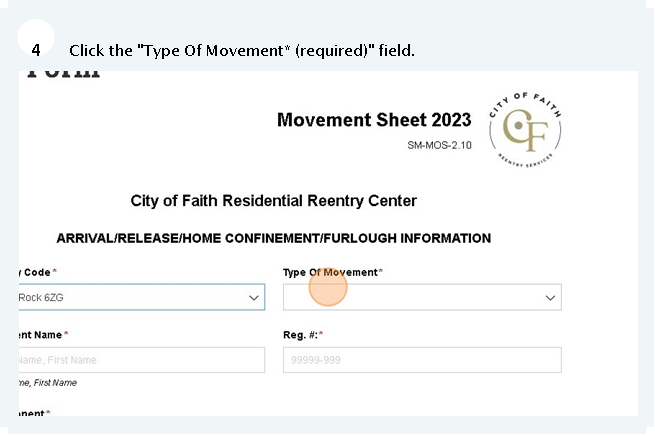
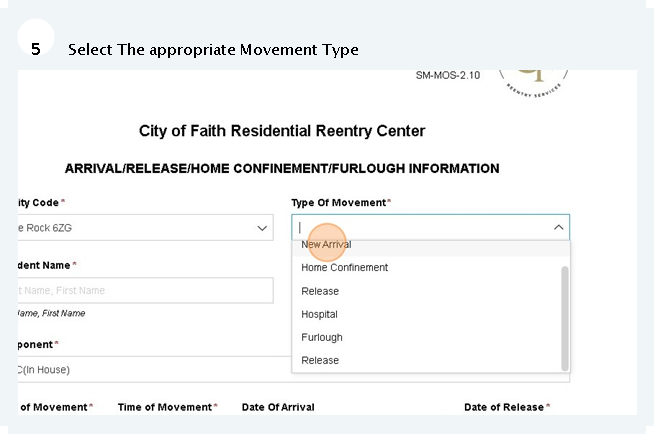
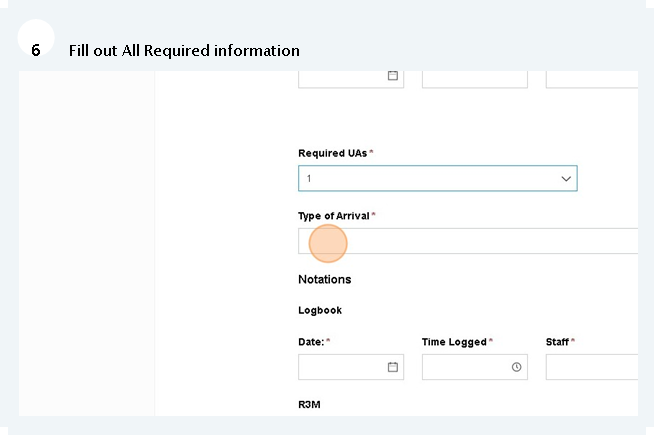
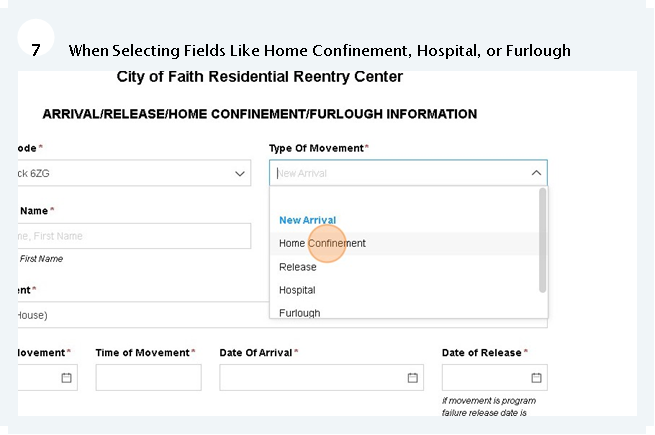
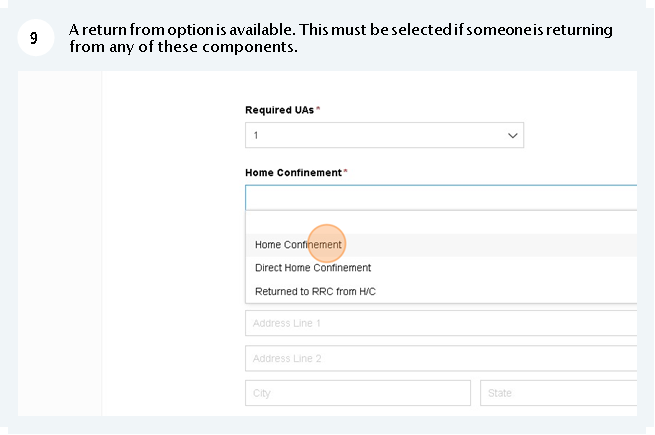
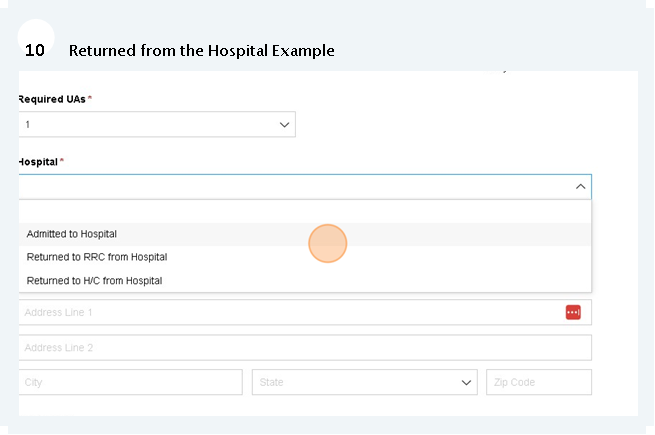
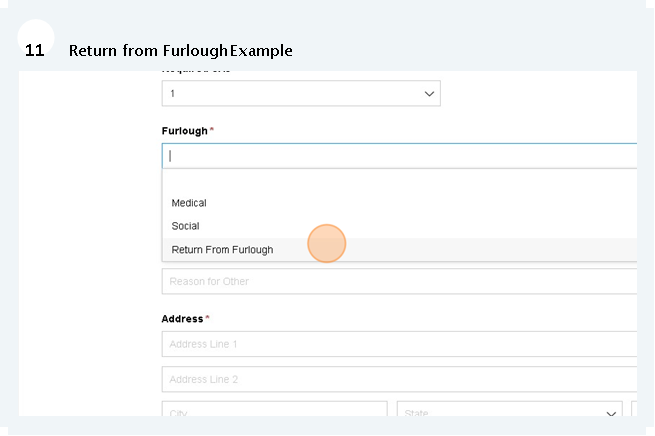
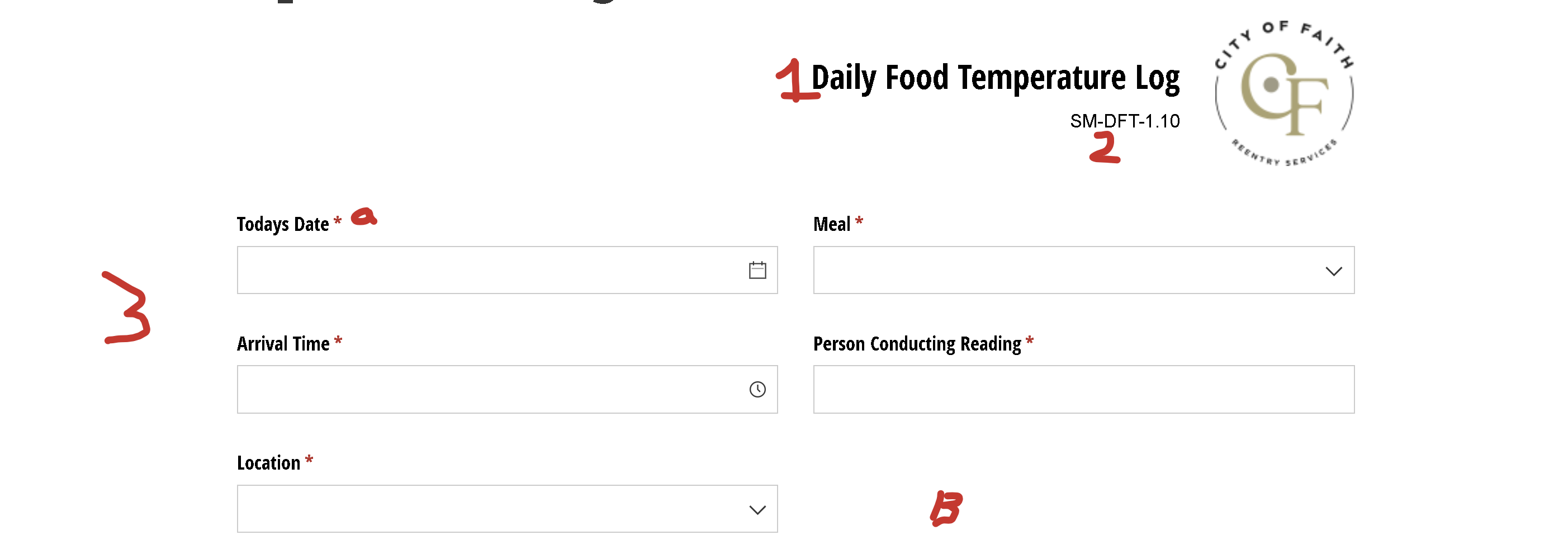
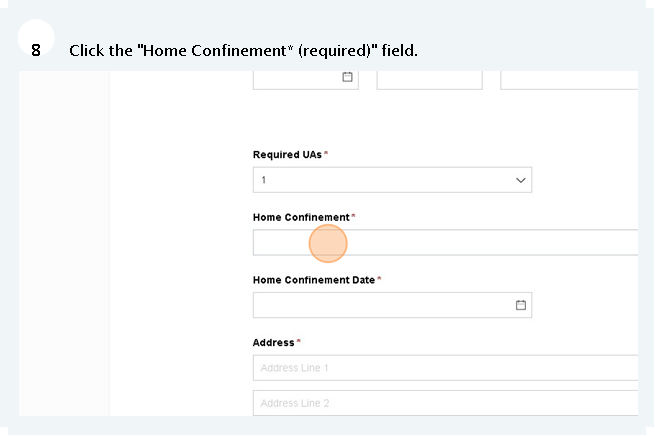
Movement sheets are an integral part of so many background processes at City of Faith. As such a Movement sheet should be the first thing we do when a new resident arrives, transfers to Home Confinement or Leaves the Facility. Lets look at the form and figure out how to use it.

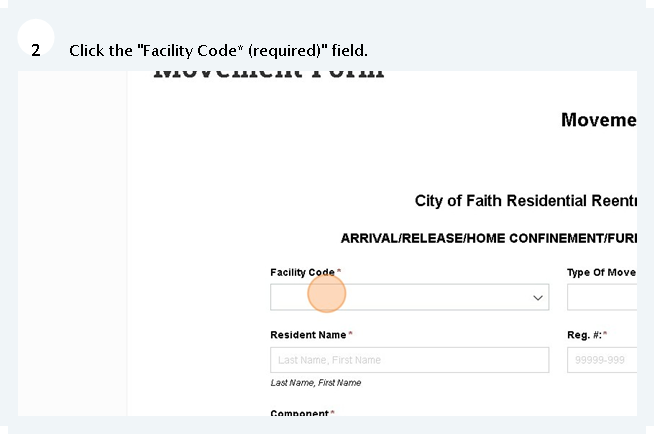
 

These Fields are for individuals who are placed out and should be filled out again on a return.


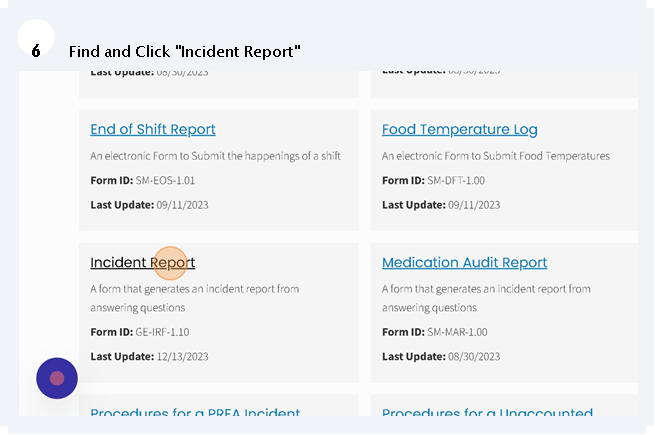
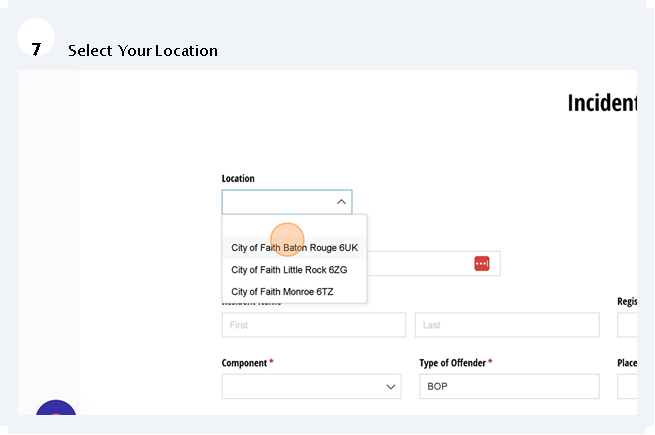
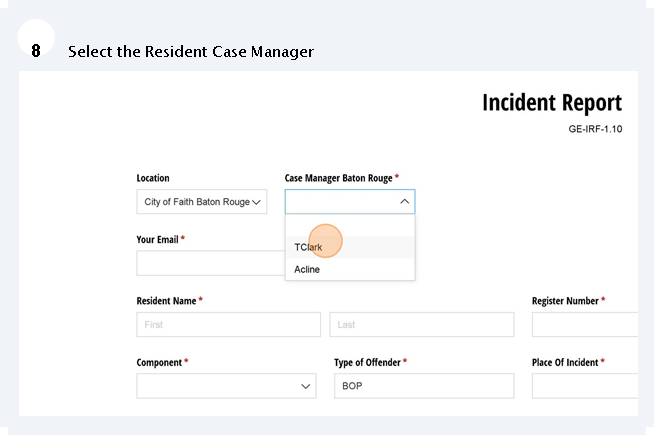
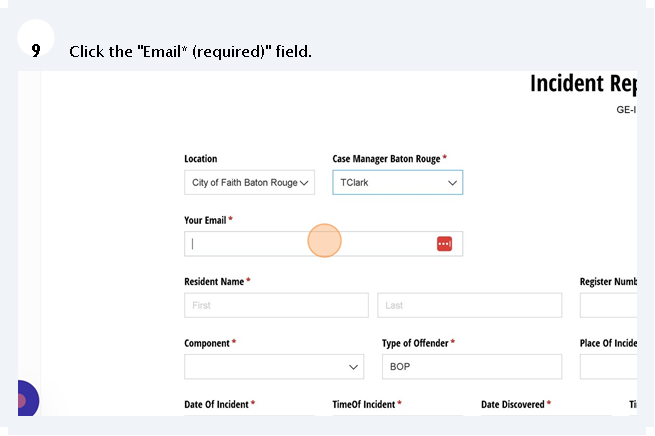
The Incident Report

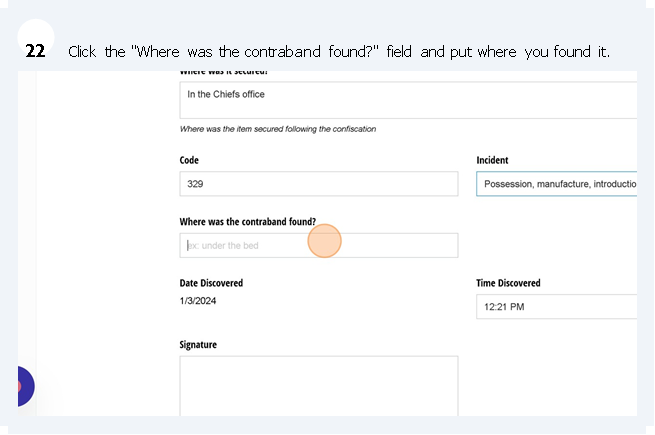
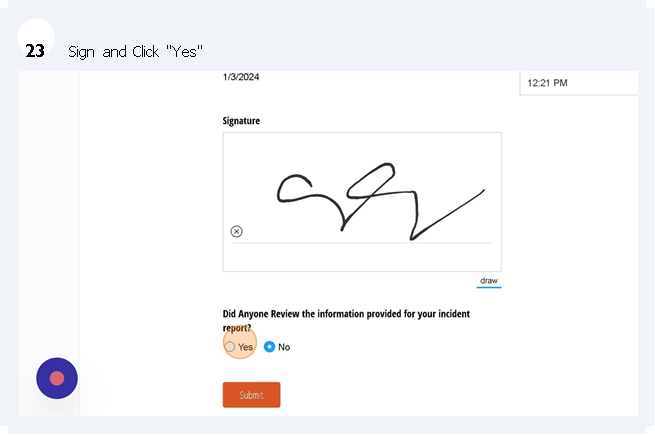
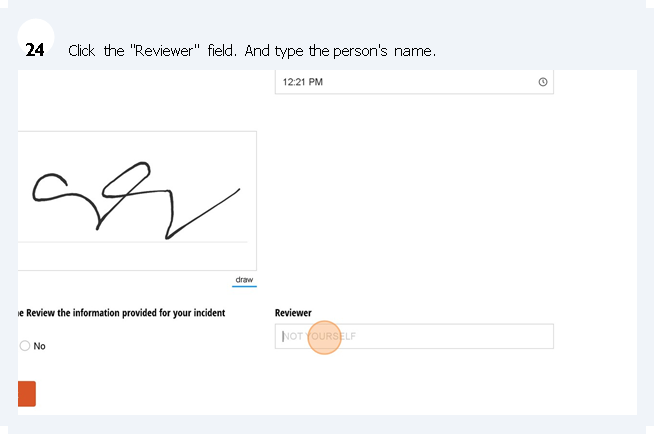
The Incident Report is used to record negative actions committed by a resident that violate the rules and regulations set by us and the Bureau of Prisons.



The Search Form

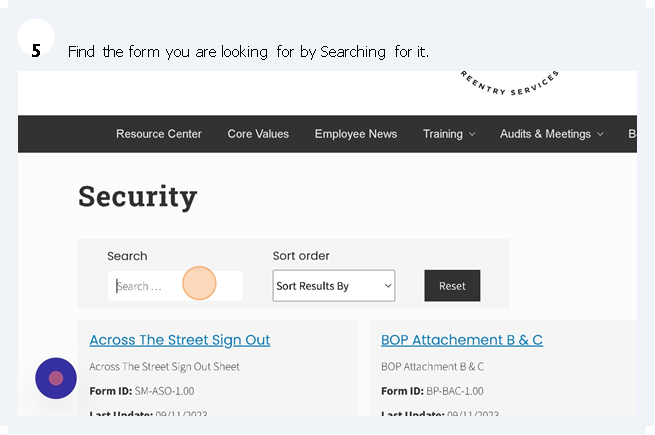
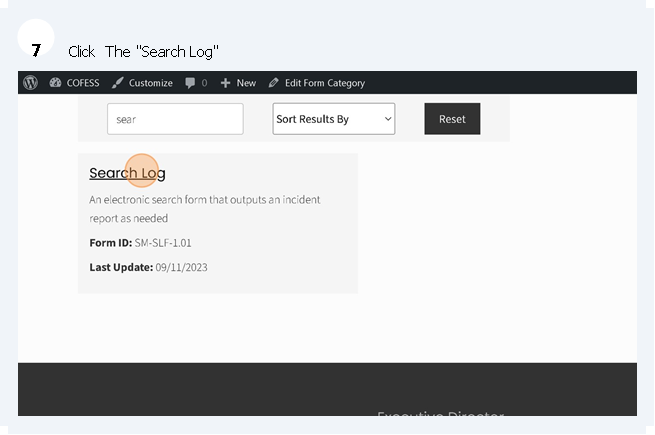
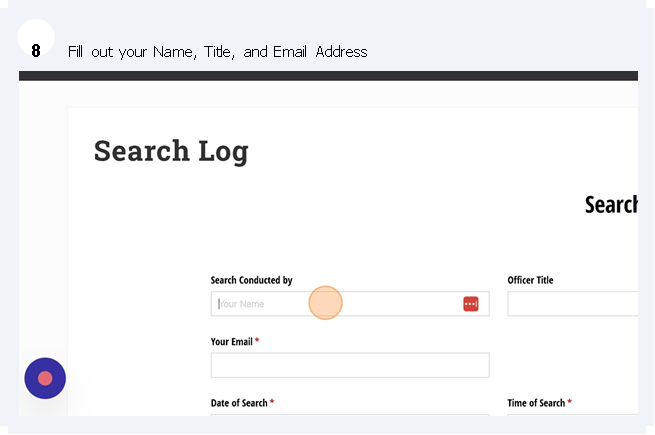
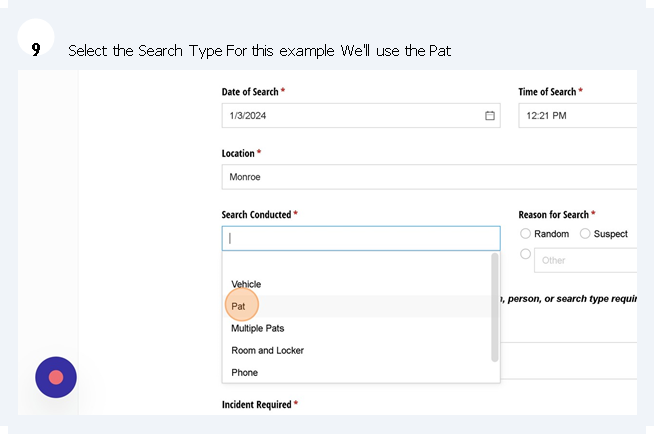
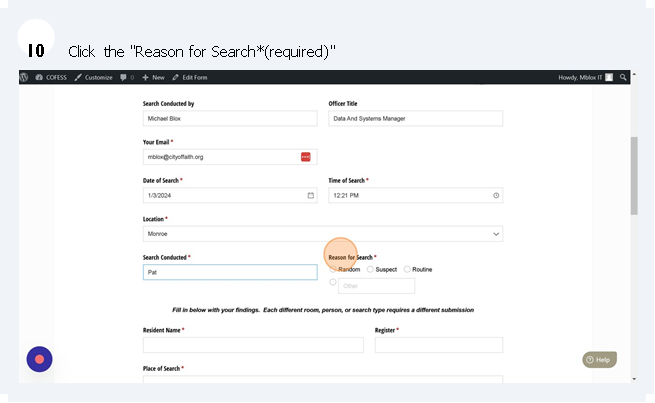
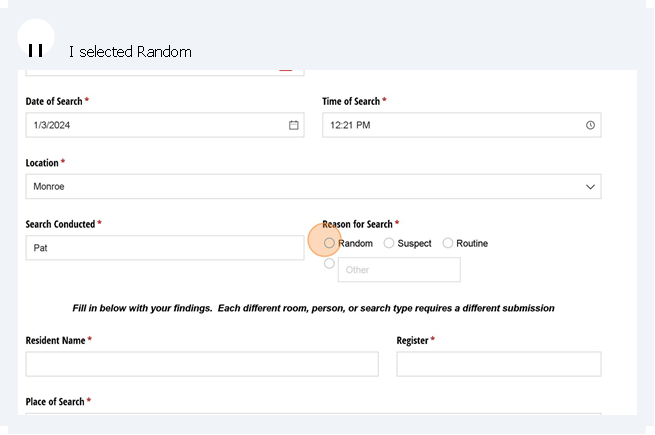
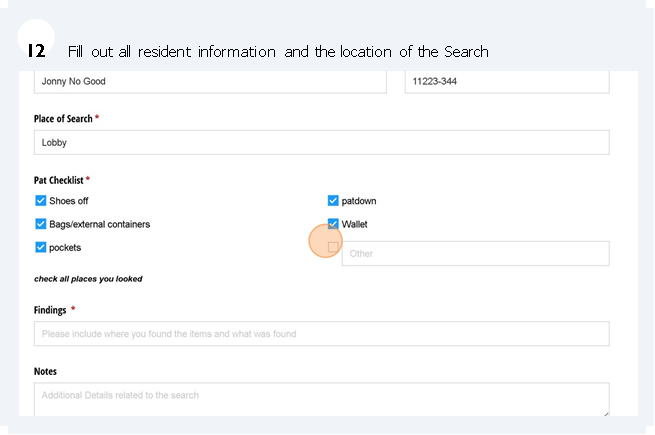
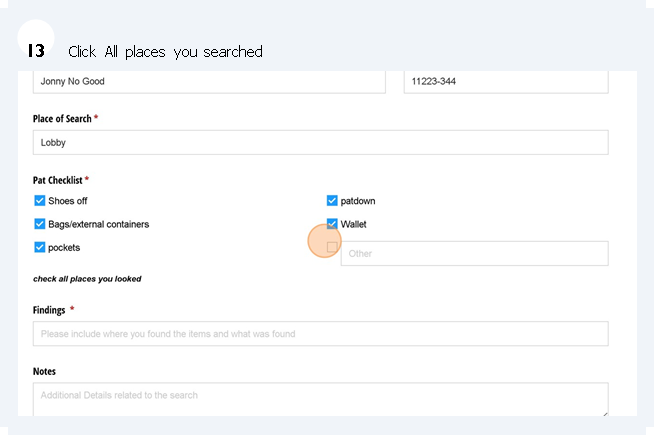
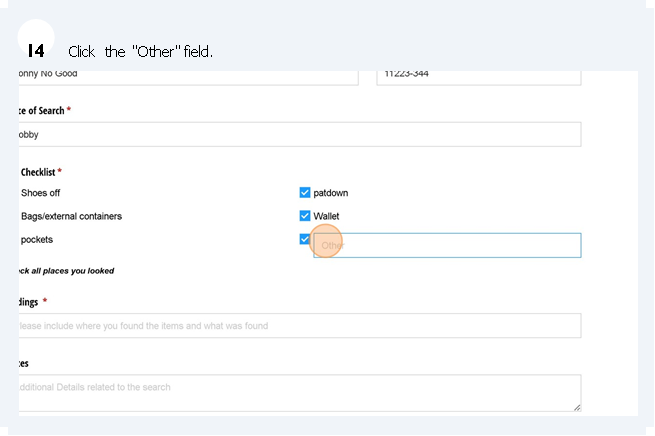
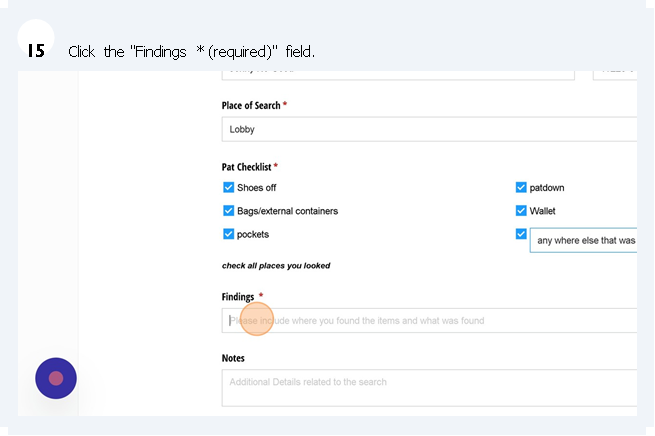
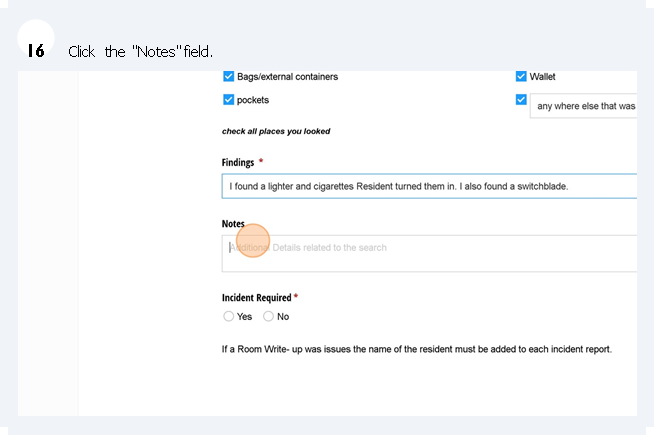
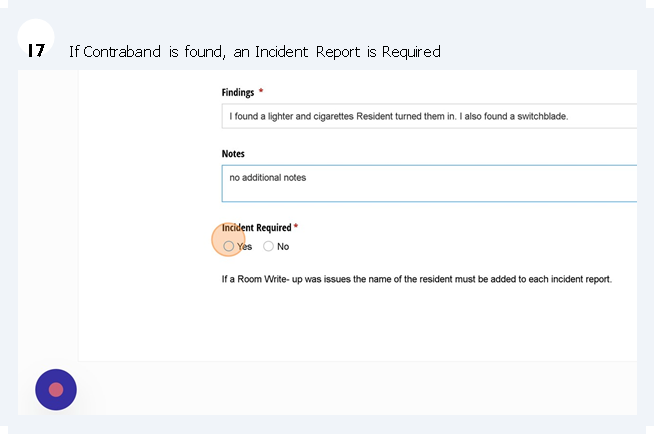
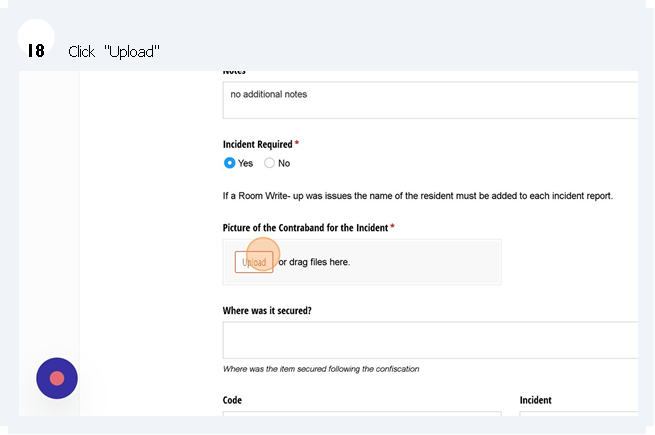
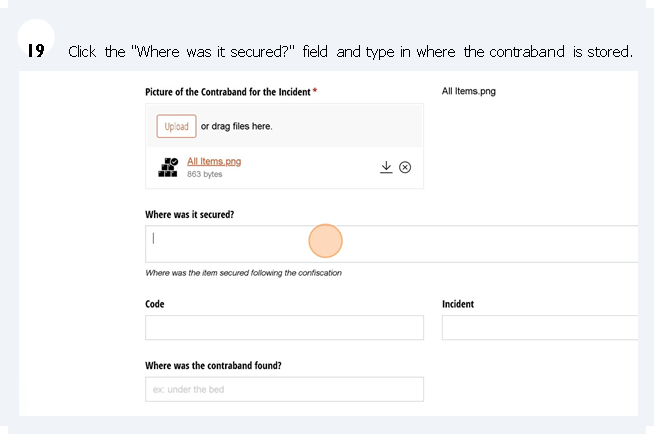
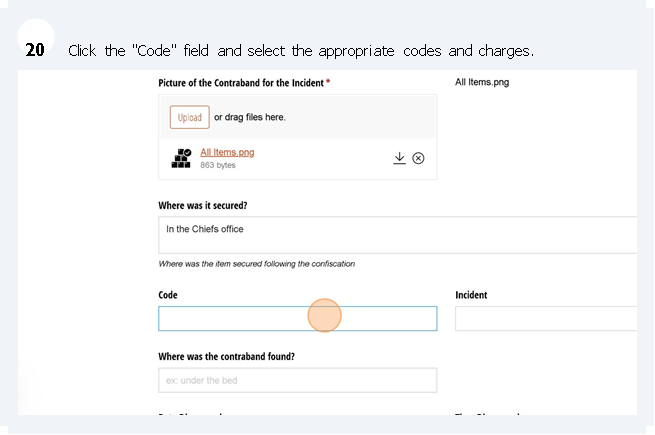
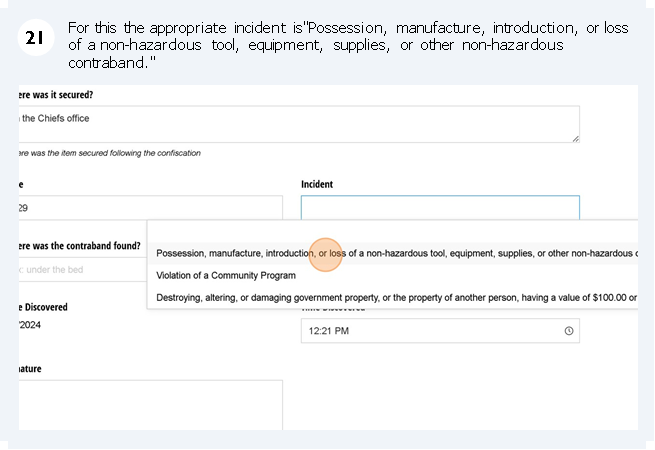
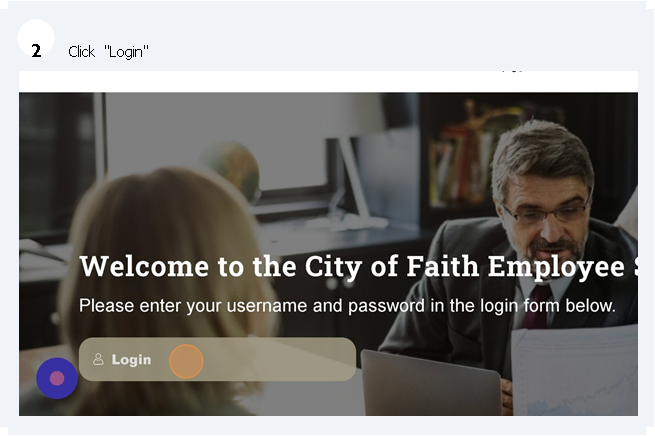
The Search form is an integral part of the City of Faith job. This form is used to log and keep track of items found and present those findings to the BOP as needed.



Finally

Next week we’ll focus on the Breathalyzer Testing Log, The Emergency Drill, and the Dietary Request Forms.

Filed Under: Employee News, Tech Tuesday

Tech Tuesday Series 3 Part 1: Tech Tuesday Series 3 Week 1: Good Forms For All and For All a Good Form

12/26/2023 By //  by Mblox IT

Announcements

1. The Help Desk Has been Made more accessible by integrating with cofess

2. The Next Teams Training will be on 1-17-24 at 12 pm. Please feel free to be there if you need any additional assistance.


The Forms Bureau

Understanding the Forms Bureau

The forms bureau was created with a two-fold purpose in mind. First to reduce paper and reduce the amount of lost paperwork. Second  We have a lot of forms, and because of this, we needed a way to ensure we were all doing them the same way for the same reasons.

20+ Funny survey memes of all time - forms.app

Components of A Form

Every form has 4 attributes that are present in Every Form.
1. A form Title- A form Title is defined by the Form name 2. A Form Code- A form code allows us to view form versions and ensure that the forms we’re using are identical 3. Content – Content makes up the different form field types and controls the data that is passed into a workflow. Content is made up of fields, text, calculations, and uploaded information.

   a. Required Fields- these are marked with a red asterisk *
   b. Other Fields-these are everything else4. Workflows- These define how the form is processed and who it goes to, and this varies based on the form you are sending. For example, a purchase order request will go to payables and accounting, however, if you select IT for the department it’ll come to me first.

Accessing the Forms Bureau

It’s important to us that you have the tools available to do your job. That’s why the Forms Bureau exists naturally we want to help make sure you know how to access it!

 Step 1: Go to cofess.cityoffaith.org(this can be found in the CityOfFaith Bookmarks tab at the top of every employee's web browser)
The first step to accessing the Forms Bureau is to go to cofess.cityoffaith.org. This is the official website of City of Faith and the portal through which you can access all our company resources.( if you have never been to Cofess or logged into your COF email you should really see your supervisor)

CCG Memes | Page 73 | CubeCraft Games

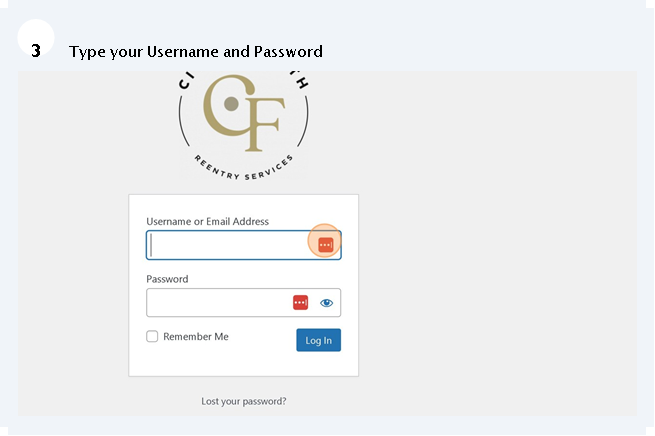
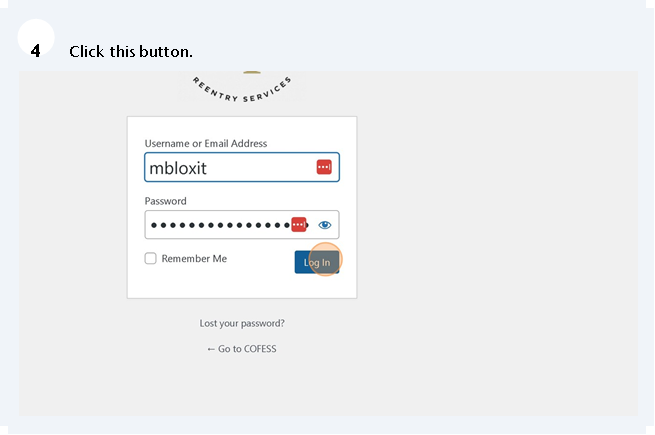
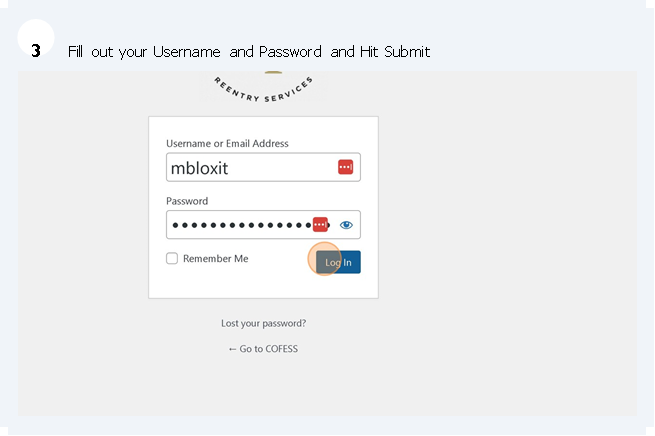
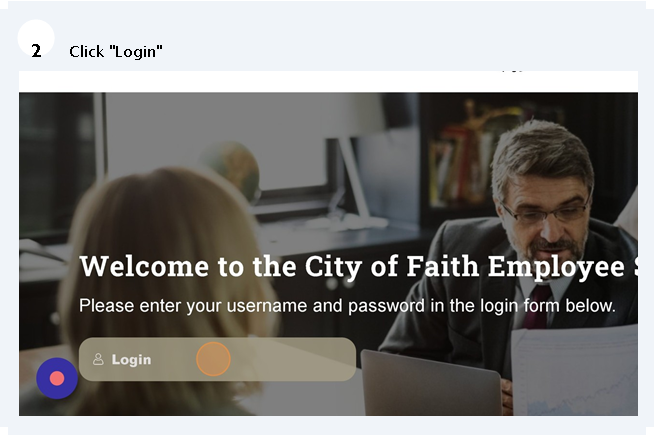
Step 2: Login using your assigned login info
Once you have accessed the website, you will need to log in using your assigned login information. This will give you access to all the services and resources available on the website.

Login To All The Things - Imgflip

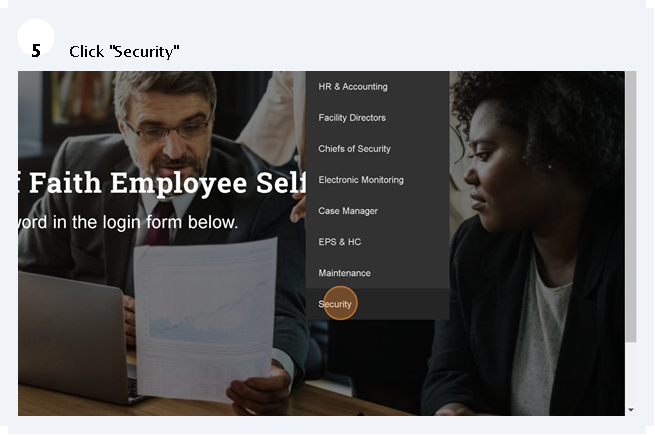
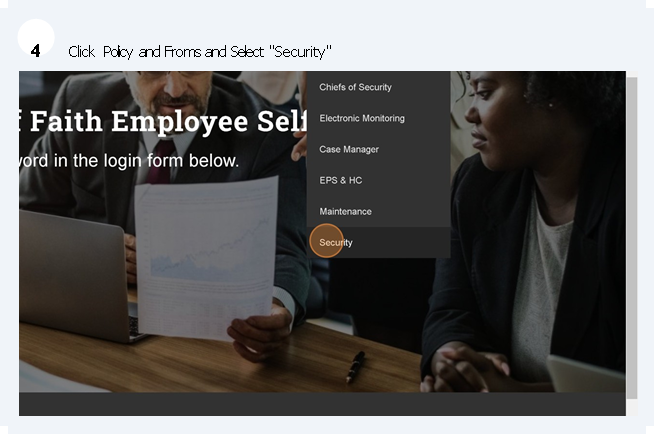
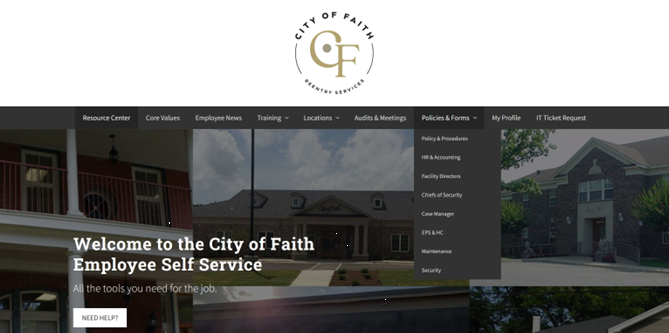
Step 3: Hover your cursor over Policies & Forms
After logging in, hover your cursor over the Policies & Forms tab. This will reveal a dropdown menu with different categories of forms.


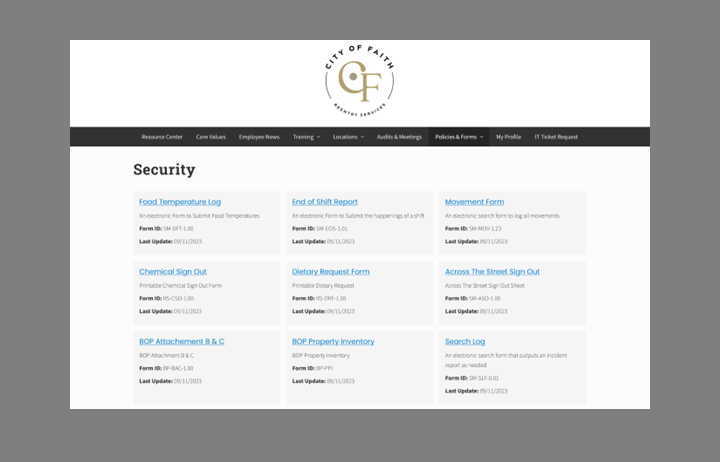
Step 4: Click the Group your job description falls under
Click on the group that your job description falls under. This will give you access to the forms that are relevant to your job.


It is important to note that everyone has access to HR & Accounting forms. Through the HR & Accounting forms, you will be able to make purchase requests, complete HR forms, and submit receipts for purchases.
Step 6: Accessing the forms
Once you are within the page assigned to your job description, you will see forms listed. Each form has a title, description, Form ID, and date of the latest update. Click on the title to access each form.
Step 7: Completing the forms
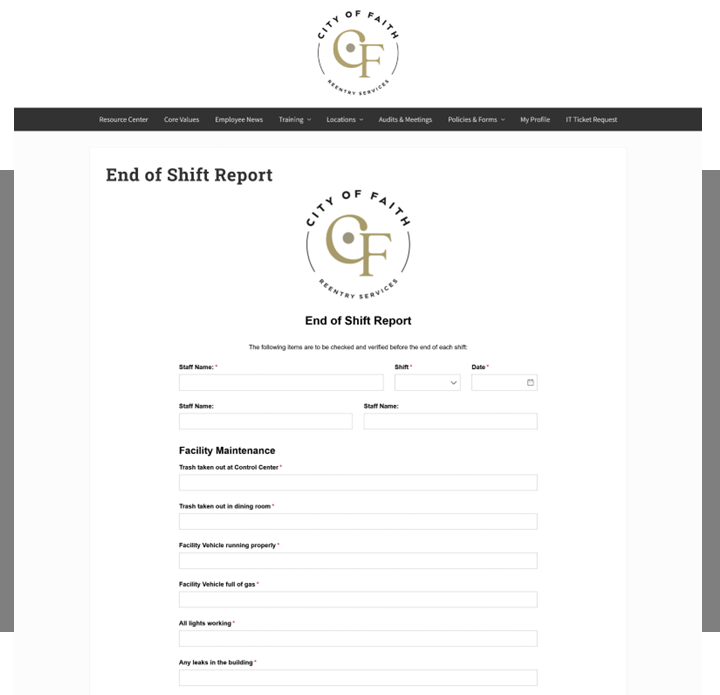
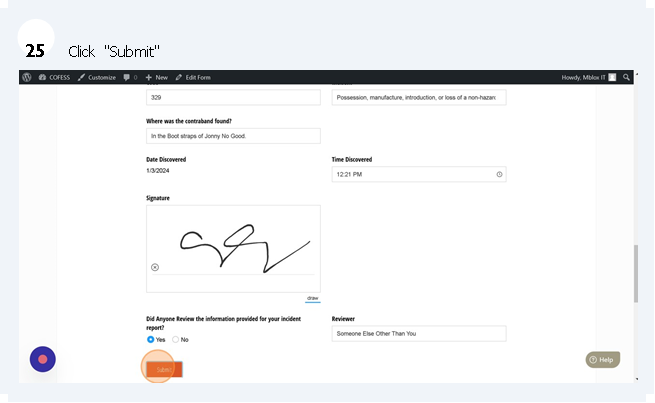
Most forms are digitally embedded forms that will ordinarily submit to your supervisor. These forms are similar to the End of Shift report (Security) and the File Accountability form (Case Mgmt). Once the page loads, complete all the required blanks and click submit or update depending on the requirements of the form.
Some Forms may even require you save a URL for later to update information as needed.


 If you have any questions or encounter any issues while accessing or completing the forms, reach out to the IT Department by submitting a ticket at cityoffaithit.freshdesk.com. From there, you will use your COF email via google or Cofess Info info to log in and submit a ticket.
Alternatively Just go to Cofess and Hit the help icon in the bottom right of the screen. Full Circle Massage by Julie - Here's friendly reminder to be sure to fill out the online intake form or arrive early and fill out a paper copy (which will be located

 Next week I’ll review some specific forms that affect us on the daily and make sure we all understand how those should be filled out!

—

Filed Under: Employee News, Tech Tuesday

Tech Tuesday Series 2 Week 4: Finale Security is like Onions

12/19/2023 By //  by Mblox IT

Announcements:

1. Tomorrow will be our second refresher over Microsoft Teams at 9 AM. 

2. Per our movement toward NIST compliance going forward no device,, should have resident information stored on it. When I conduct visits all computers, tablets and other COF-owned devices will be evaluated for compliance.  If you have questions about this see me.  


We’re now in the fourth week of our cybersecurity series. Over the past weeks, we’ve learned about password managers, how to install LastPass, the dangers of phishing and other socially engineered online scams, secure password creation and sharing, and other tools we use to protect ourselves.

Good Cyber security is like onions there are multiple layers of safeguards and walls in place. Each one serves a purpose. The first line of defense is always using best practices and internet common sense.


 One note do not use the same password for everything even slight variations make it harder for malicious people.


SOLVED] Your best Internet Meme Security Awareness poster - IT Security

This week, we’re focusing on what to do if you suspect you’ve been a victim of a cyber threat or your computer is infected.


CybersecMemes

Step 1: Identify the Issue If you notice any suspicious activity such as unfamiliar emails in your sent folder, unexpected password reset emails, or unauthorized transactions, you may have been targeted.

  1. Check Your Accounts: Regularly review your online accounts for unauthorized activity or changes. This includes email, social media, bank accounts, and any other services you use.
  2. Monitor Your Emails: Be aware of unexpected password reset emails, emails about changes to your account settings, or emails from unknown senders.
  3. Look for Performance Changes: If your device is running slower than usual, crashing, or displaying frequent error messages, it could be a sign of malware.
  4. Watch for Unusual Network Traffic: An unexpected increase in data usage could indicate that a malicious program is using your network.
  5. Be Aware of New or Changed Files: If you notice new files on your system that you didn’t download, or if existing files were modified without your knowledge, it could be a sign of a security breach.
  6. Check Your Browser: Unexpected changes in your browser, such as new toolbars, extensions, or a changed homepage, could indicate a problem.
  7. Use Security Tools: Use the security tools available in your operating system to scan for issues. City of Faith Utilizes a program called Trend Micro for our security. If your system does not have this or you don’t know how to use it please see IT

Step 2: Report the Incident Immediately report the incident to our IT department at City of Faith IT email Include as much detail as possible about what you’ve observed. Screen Shots are always helpful. It’s best practice to tell IT what you clicked on and when the problem started  Occurring.

Top 10 Cybersecurity Memes


Step 3: Change Your Passwords If an issue is identified IT will recommend all your passwords be changed. Change your passwords for all your accounts, starting with your email and financial accounts. Remember to use LastPass to generate and store strong, unique passwords. See  Here for more information.


15 Cybersecurity Memes That Will Make You Laugh Then Cry


Step 4: Monitor Your Accounts Keep a close eye on your accounts for any further suspicious activity. If you notice anything unusual, report it immediately.

Step 5: Be Cautious of Scam Attempts Be wary of any emails or messages asking for personal information. Always verify the source before clicking on any links or providing information. Do not install anything on your device without first getting IT department approval. All programs must be evaluated for security compliance.


Step 6: Educate yourself on Malware Malware, short for malicious software, is any software intentionally designed to cause damage to a computer, server, client, or computer network. It’s a broad term that encompasses various harmful types of software, including viruses, ransomware, spyware, and trojans. Malware can steal, delete, or encrypt your data, alter or hijack core computing functions, and spy on your computer activity without your knowledge or permission. It often spreads via email attachments, software downloads from the internet, or operating system vulnerabilities. It’s important to use antivirus software and follow good security practices to protect against malware.


70% OF ALL MALWARE GOES UNDETECTED BY ALL ANTIVIRUS SOFTWARE BECAUSE USERS ALLOW IT IN


There are several common types of malware that you should be aware of:

1.          Ransomware: This type of malware disables the victim’s access to data until a ransom is paid.

2.          Fileless Malware: This malware makes changes to files that are native to the operating system.

3.          Spyware: This collects user activity data without their knowledge.

4.          Adware: This serves unwanted advertisements.

5.          Trojans: This disguises itself as desirable code.

6.          Worms: This spreads through a network by replicating itself.

7.          Rootkits: This gives hackers remote control of a victim’s device.

8.          Keyloggers: This monitors users’ keystrokes.

9.          Bots: This launches a broad flood of attacks.

10.        Mobile Malware: This infects mobile devices.

11.        Wiper Malware: This erases user data beyond recoverability.

Each type of malware has its own characteristics and methods of operation. It’s important to have a good understanding of these types in order to protect your computer effectively. Let me know if you need more information on any of these types.


Physical Security

Physical Security should be monitored as well. Here are some tips for maintaining a safe and secure work environment:

  1. You should not leave your computer open with sensitive information at any given time.

Top 10 Cybersecurity Memes

        2. Do not write your passwords on sticky notes and out in the open.

Security Awareness Memes | CarmeloWalsh[.]com

a. The best way to secure your passwords is by using last pass and MFA.  One of the changes coming to City of Faith in the near future is to add MFA to all City of Faith Utilized Software.


Recent studies have actually indicated the most secure form of password protection is called Passwordless

Passwordless security is a type of authentication that doesn’t use passwords or any other secret you need to remember to verify who you are. Instead, it uses something you have, like a device or a hardware token, or something you are, like a fingerprint or face scan.

The main advantage of passwordless security is that it gets rid of the risks that come with using passwords. These risks include having your password stolen, using the same password for multiple accounts, and the constant need to manage and remember passwords.
Passwordless authentication also makes signing in easier and quicker, which can make people more productive. It also increases security by getting rid of password-related risks.

When setting up passwordless security, it’s important to choose methods that make sense for the people using them and the devices and networks they’re using. It’s also a good idea to use multi-factor authentication, which means you need to provide two or more forms of authentication before you can access an account.

In summary, passwordless security is considered a best practice because it makes things more secure, easier for users, and reduces the need for managing passwords. However, like all security measures, it should be used as part of a wider security strategy that includes other protections like firewalls, antivirus software, and secure network protocols.

A person wearing glasses Description automatically generated

3. Devices when not in use should be kept behind locked doors(don’t leave your office unlocked)

4. Inspect your system for external devices not placed by you regularly. As a general rule we should not have unauthorized devices plugged into our computers you don’t want to be responsible for accidentally uploading a virus to COF.

DNS Security in Six Star Wars Memes – BlueCat Networks

5. Only use City of Faith Authorized equipment. Don’t use a home device without prior authorization and written approval.


Remember, your security is our top priority. If you have any questions or concerns, please don’t hesitate to reach out to our IT department.

CybersecMemes


Our next Series will be targeted toward the New Forms Bureau and the Different things available to everyone there. As always if you are having issues please submit a ticket. This article can always be reviewed on the Help Desk Knowledge Base and Cofess.

Filed Under: Employee News, Tech Tuesday

Tech Tuesday Series 2:Part 3 Password Sharing and our Shield Wall

12/12/2023 By //  by Mblox IT

Announcements 

  1. Tomorrow is City of Faith’s Annual Christmas Party 
  2. A 4th COF jacket order is coming.  
  3. Microsoft Teams Deadline has been extended to February 14th. 
    1. 2 additional training sessions will be held over Teams. The first will be Wednesday December 20th.  
  4. The last pass training sessions will be conducted in February while I travel to each location. 


Last Pass Password Sharing  

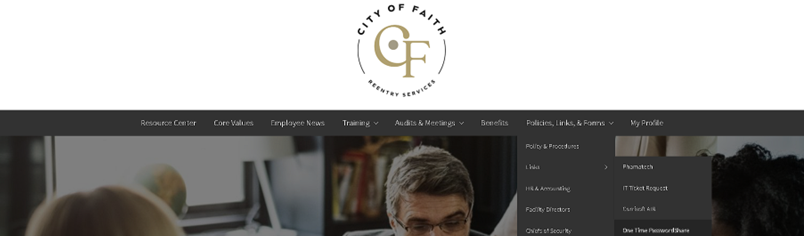
City of faith deploys two ways to do password sharing. The first is through https://1ty.me/  as pictured below. You can find all of this here 


The other method which is more secure is by using Last Pass. Last Pass has a built-in password-sharing feature that can be found by going to your vault.  

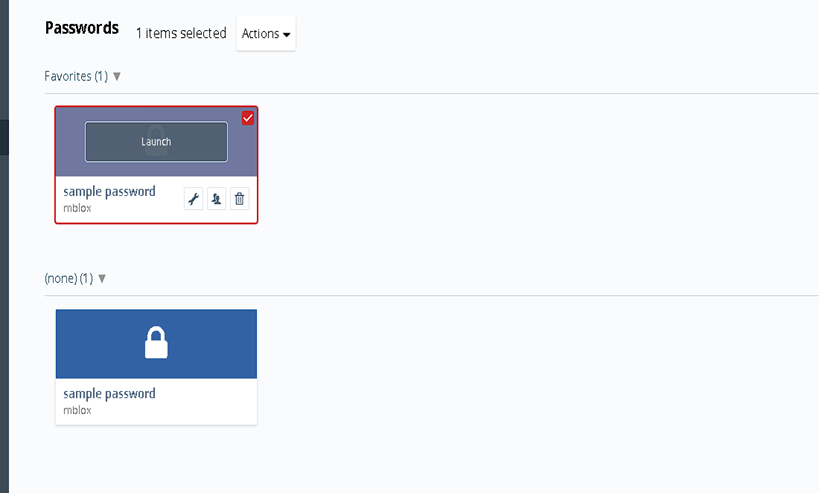
  1. Go to the password you want to share with others. 
    1. This can be found by scrolling through the passwords or by typing in the URL or site name of the password you’re looking for. For the purposes here I’ve used the URL  DummyUrl  


      1. The Password can be viewed by hitting the wrench icon. 
    1. After you hit the wrench, you can then view the Password by clicking the eyeball.   
  1. To Share the password, you hit the person icon next to the wrench on the search screen.  
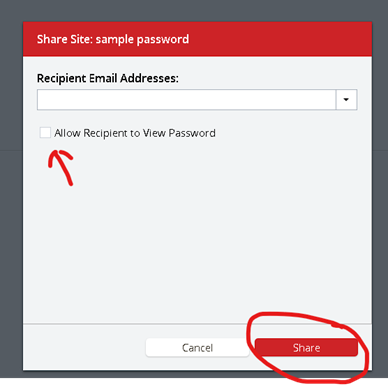
    1. You then fill out the pop-up box that will appear. 


    1. The email address would be the email of the person you want to share this with, the allow recipients to view the password gives them the ability to view the password.  
    2. Then make sure you hit share. 
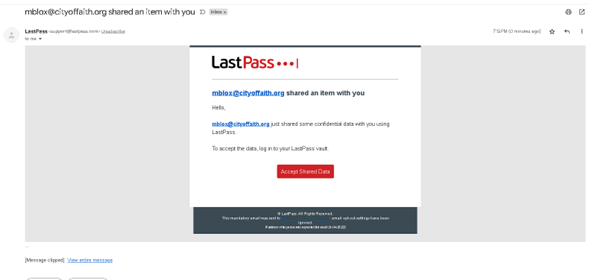
    3. The user will then receive an email with a link authorizing them to view the shared password. 


    1. I have  shared the password link with all of you created in this process feel free to let me know where the journey took you this time. It’ll show up in your sharing center under shared items.  

Tools we use to protect ourselves. 

The greatest tool against getting scammed is first and foremost your brain and critical thinking skills. But outside of that COF has some great tools we use to minimize the threat.   

    1. Cloud Storage- Storing resident data on local computers is a slippery slope in today’s era and leaves our clients and staff vulnerable to identity theft and fraud. We utilize a virtual cloud hosted server through Revver(formerly Efile) to store all resident files.  
    2. Anti-Virus and Firewalls- All COF devices should have antivirus installed on their devices. We use Trend Micro. This allows us to put in companywide safeguards including URL filtering, and malware protection for those trojan style viruses. (If you for some reason do not have antivirus, see IT) 
    3. MDM – MDM or Multi Device Management allows our systems to be on the same program and see current vulnerabilities and adjust policy instantly to all devices as they occur. We do this through Microsoft 365. (If you for some reason do not have MDM, see IT) 
    4. Last Pass- Last pass allows us to securely store and save passwords making it easier to meet security requirements such as NIST 800-53 and FedRamp requirements (like those 90-day password changes). (If you for some reason do not have LastPass see IT) 
    5. 2(multi) factor Authentication- Most people are probably familiar with this process through systems such as R3M. When you type in your email it sends you a code and then requires your password input as well. This will be coming  to all COF programs that offer it within the next year. I recommend utilizing a Authenticator app to make your life easier See Here  
    6. Forms Bureau- The Forms Bureau allows us to maintain, contain, and retain company proprietary information and is HIPPA compliant. The forms bureau is on cofess (if you don’t know how to access this information see IT). 
    7. Company Policies and Secure Access- We maintain a secure access policy in compliance with FedRamp and NIST regulations that basically state the lowest access needed for all parties to do their jobs. For example, Case Managers can’t access Employee files because that doesn’t pertain to their job.  Anyone who does any hiring has access to a form that sets these access controls and must fill it out even in cases of temporary access requests.  


More about Scams 


Instead of going over these 1 by one I’m going to provide you with a list of scams I’m familiar with and if you see something say something. The majority of scams that will be up to you to watch out for are called social engineering scams. These are scams where the perpetrators have created a scenario that will lure you the user into a situation that is favorable to the scammer.  

Certainly, there are various scams on the internet that people should be aware of to protect themselves. Here are some common examples: 


1.  Phishing Scams:  

   –  Email Phishing:  Fraudulent emails that mimic legitimate sources to trick users into providing personal information, such as login credentials or financial details. 

   –  Website Phishing:  Fake websites designed to look like legitimate ones to steal login information or financial data. 


2.  Online Shopping Scams:  

   – Fake online stores that offer products at extremely low prices to lure customers but never deliver the goods. 


3.  Tech Support Scams:  

   – Unsolicited calls or pop-ups claiming to be from tech support, stating that your computer has a virus and offering to fix it for a fee. Legitimate tech support companies don’t contact users this way. 


4.  Lottery or Prize Scams:  

   – Emails or messages claiming you’ve won a lottery or prize, but to claim it, you need to provide personal information or pay upfront fees. 


5.  Romance Scams:  

   – Scammers build a romantic relationship with someone online and then request money for various reasons, such as a medical emergency or travel expenses. 


6.  Investment Scams:  

   – Fake investment opportunities promising high returns with little or no risk. Always be cautious and research thoroughly before investing. 


7.  Social Media Impersonation:  

   – Fake social media profiles impersonating someone you know or trust, aiming to extract personal information or money. 


8.  Job and Employment Scams:  

   – Fake job offers that require payment for training or materials, or requests for personal information that can be used for identity theft. 


9.  Cryptocurrency Scams:  

   – Fake ICOs (Initial Coin Offerings), fraudulent exchanges, or Ponzi schemes in the cryptocurrency space. 


10.  Ransomware Attacks:  

    – Malicious software that encrypts your files and demands payment for their release. Regularly back up your data and be cautious with email attachments. 


11.  Freelance Scams:  

    – Fake job listings that require payment for access to opportunities or promise payment for work that is never actually completed. 


Always exercise caution when dealing with unfamiliar websites, emails, or messages. Be skeptical of unsolicited communications and verify the legitimacy of sources before providing personal or financial information. Keep your software and antivirus programs up to date to protect against malware and other online threats. 


As always this can be reviewed on the City of Faith Help Desk or on Cofess. 

Thanks,
 

Filed Under: Employee News, Tech Tuesday

Tech Tuesday Series 2 part 2 Scams Likely and Last Pass Set up

12/05/2023 By //  by Mblox IT


Announcements:

  1. Congrats to Ms. Coleman on Winning The Trailblazer Award!
  2. Forms Bureau is in full swing if it’s on Cofess it’s good to use. Please contact me if you have questions!

In order to continue our Journey in becoming more secure as a company I got a lot of requests for a tutorial on how to sign up for Last Pass. So I’ll bump password sharing to next week’s article. First let me stress this is an amazing password manager available to every person at this company just for being an employee. It is a secure way to share and store passwords and it notifies you if a password was seen on a data breach.

Last pass helps also helps us as a company reduce how often and how managed our passwords need to be by managing one password and letting Last Pass take care of the rest.

TABLE OF CONTENTS

    • Join a LastPass business account as a new user
    • Other Types of Scams
      • Adware
      • Phishing:
      • Some helpful advice for cyber security in general.
  • Don’t Be like Grumpy Cat


CyberSecurity Memes and Phishing Memes of 2023 - Part 2


Join a LastPass business account as a new user

You can join your company’s LastPass Business or LastPass Teams account (once you’ve been invited by a LastPass admin) by activating a new LastPass account.


The steps below outline the activation experience for a brand new user whose email address was not associated with any existing LastPass account.


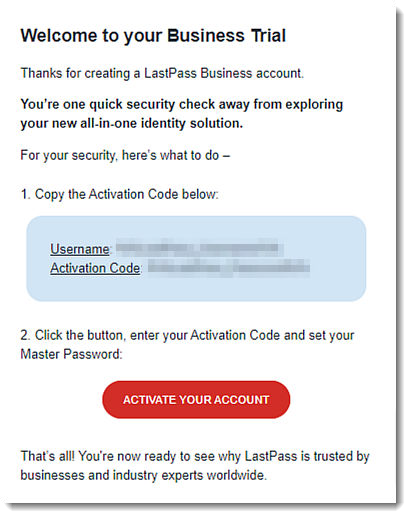
  1. Open the Welcome email you received from LastPass with the subject line, “Activate your account to get started.”
  1. Copy the Activation code.
  2. Select Activate Your Account.

A screenshot of a computer screen Description automatically generated

  1. Once redirected to the “Finish account creation” page, paste the Activation code into the field (your LastPass email address is already pre-populated for you).
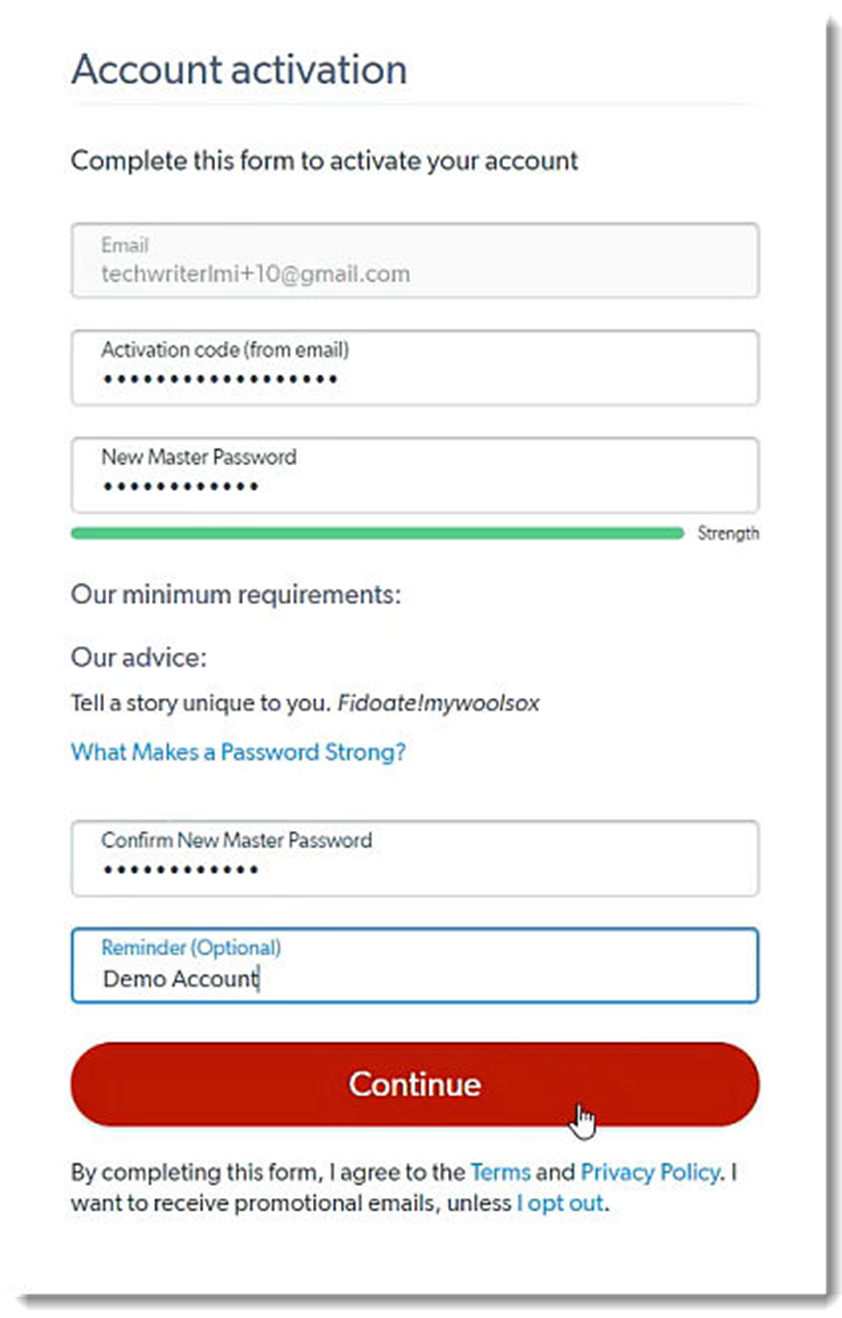
  1. Create a new master password, then re-enter it to confirm. If desired (recommended) set a Reminder – this is a clue that is sent in a reminder email to help you remember your master password if it is ever forgotten).
  2. Select Continue

A screenshot of a login form Description automatically generated


Result: Your LastPass vault is then de-crypted and re-encrypted to use your newly created master password to log in to LastPass going forward. 

  1. Once your account is created, choose from the following options for installing the LastPass browser extension:
    • If you already have the LastPass installed, click OK on the confirmation page, and you are redirected to your LastPass vault.
    • If you do not have LastPass installed, you can click Install LastPass on the confirmation page to install the LastPass browser extension and log in.


     8. You have successfully activated your LastPass Business or LastPass Teams account, and are now logged in to your vault.

Other Types of Scams

Password Protection isn’t the only way we avoid scammers and having our information stolen.

Adware

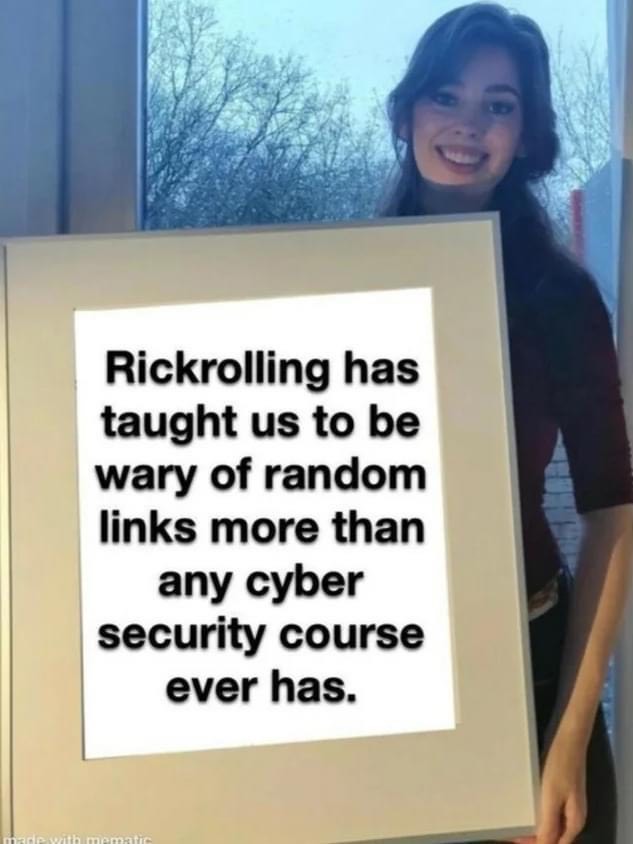
Scammers often hide malicious software in pop-ups and links. It’s crucial never to click on a link if you’re unsure of its destination, and the same caution should apply to unfamiliar articles or pop-ups. For more information, click Here!

Phishing:

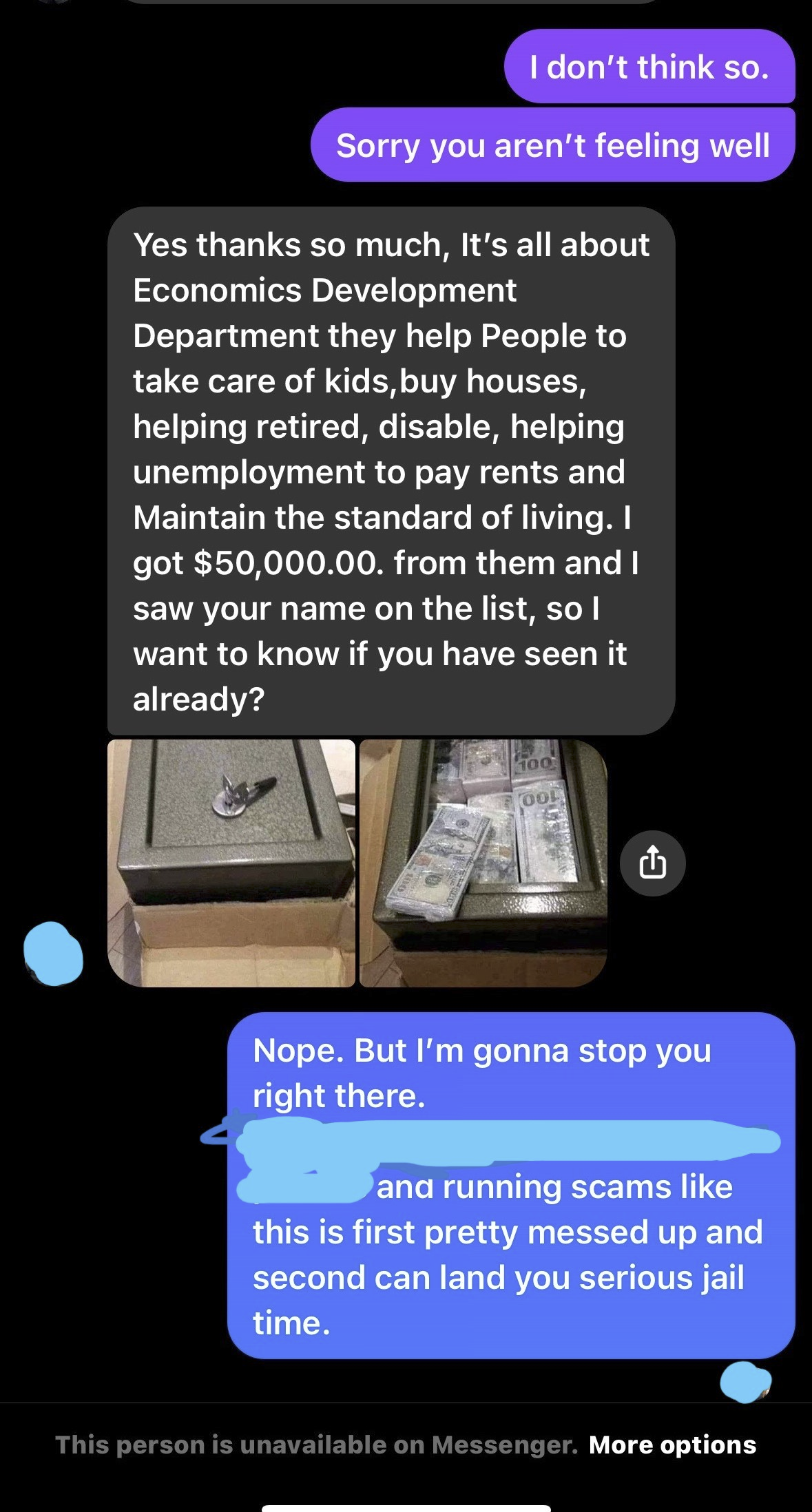
Beware of scammers who may reach out, pretending to be familiar contacts or trusted sources like Windows Defender. I recently experienced such an incident myself. The scammer posed as a friend, using a common tactic that I’ve observed affecting others in our community.


Typically, these scammers initially pretend to be someone you know, perhaps a distant acquaintance or relative. They often provide a plausible excuse for not engaging in a video call or phone conversation, citing reasons like a sore throat, as was the case in my encounter. Following this, they attempt to establish contact with you and then proceed to boast about the success of their fraudulent activities, often involving a significant sum of money.


Subsequently, they may claim to have come across your name on a certain list (there’s almost always some list involved) and offer to assist you in acquiring a similar financial gain. However, this is where it takes a turn for the worse—they typically request something less traceable, such as Apple gift cards or funds through cash apps. They will invent reasons for being unable to perform the requested actions themselves.


If you find yourself in such a situation, it is advisable to promptly change your password on the relevant platform and clear your browsing history. Stay vigilant and exercise caution to protect yourself from falling victim to these scams.


Some helpful advice for cyber security in general.

CyberSecurity Memes and Phishing Memes of 2023

Don’t Be like Grumpy Cat

11 hilarious cybersecurity memes of cats

Filed Under: Employee News

  • « Go to Previous Page
  • Page 1
  • Interim pages omitted …
  • Page 8
  • Page 9
  • Page 10
  • Page 11
  • Go to Next Page »

Footer

Corporate Office

1511 Jackson Street
Monroe, Louisiana 71202
Phone: (318) 325-6231
Fax: (318) 325-6196

Little Rock Admin

1400 S. Garfield Dr.
Little Rock, Arkansas 72204
Phone: (501) 615-1090
Fax: (501) 615-1099

COF-Baton Rouge

6749 Cezanne Ave.
Baton Rouge, LA 70806
Phone: (225) 924-5757
Fax: (225) 924-5822

Chief Executive Officer

Terry Williams
(501) 615-1090
[email protected]

Chief Operations Officer

Allen Winkler
(501) 615-1090
[email protected]

Chief Financial Officer

Troy Adams
(318) 325-6231
[email protected]

Navigation

  • Home
  • Core Values
  • Processes
  • Annual Training
  • My Profile

Copyright © 2026 · City of Faith