
Announcements
1. The Help Desk Has been Made more accessible by integrating with cofess

2. The Next Teams Training will be on 1-17-24 at 12 pm. Please feel free to be there if you need any additional assistance.
The Forms Bureau
Understanding the Forms Bureau
The forms bureau was created with a two-fold purpose in mind. First to reduce paper and reduce the amount of lost paperwork. Second We have a lot of forms, and because of this, we needed a way to ensure we were all doing them the same way for the same reasons.
Components of A Form
Every form has 4 attributes that are present in Every Form.
1. A form Title- A form Title is defined by the Form name 2. A Form Code- A form code allows us to view form versions and ensure that the forms we’re using are identical 3. Content – Content makes up the different form field types and controls the data that is passed into a workflow. Content is made up of fields, text, calculations, and uploaded information.
a. Required Fields- these are marked with a red asterisk *
b. Other Fields-these are everything else4. Workflows- These define how the form is processed and who it goes to, and this varies based on the form you are sending. For example, a purchase order request will go to payables and accounting, however, if you select IT for the department it’ll come to me first.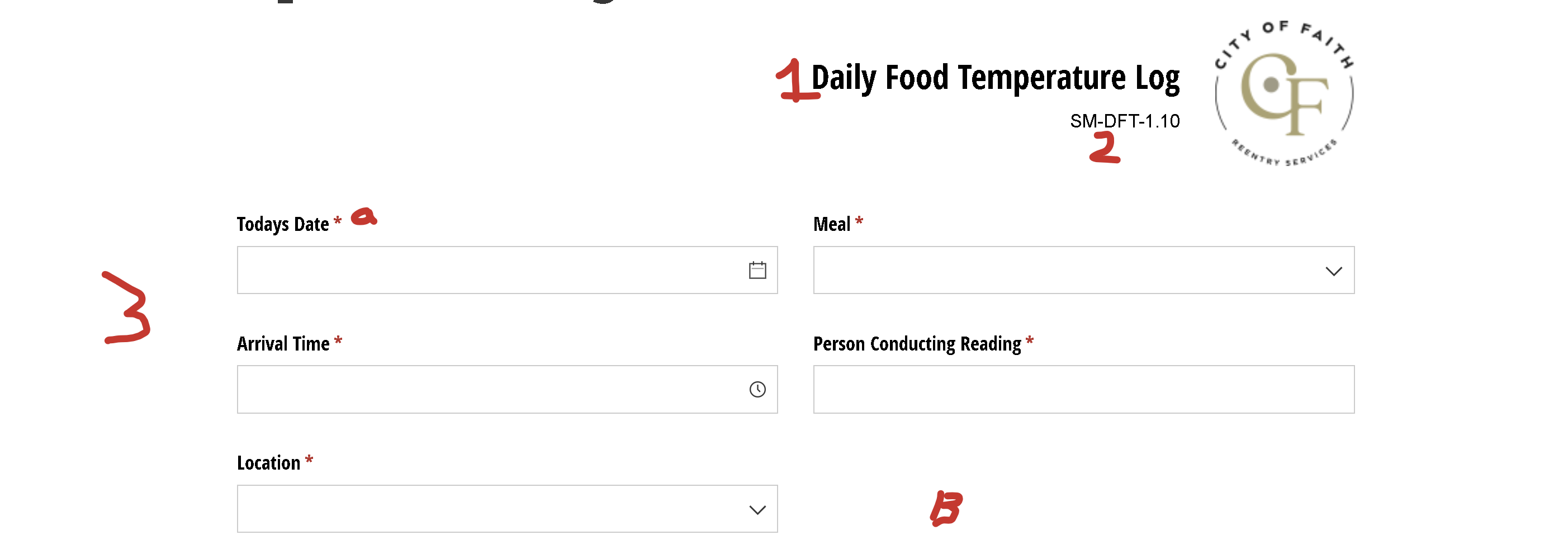
Accessing the Forms Bureau
It’s important to us that you have the tools available to do your job. That’s why the Forms Bureau exists naturally we want to help make sure you know how to access it!
 Step 1: Go to cofess.cityoffaith.org(this can be found in the CityOfFaith Bookmarks tab at the top of every employee's web browser)
The first step to accessing the Forms Bureau is to go to cofess.cityoffaith.org. This is the official website of City of Faith and the portal through which you can access all our company resources.( if you have never been to Cofess or logged into your COF email you should really see your supervisor)
Step 2: Login using your assigned login info
Once you have accessed the website, you will need to log in using your assigned login information. This will give you access to all the services and resources available on the website.
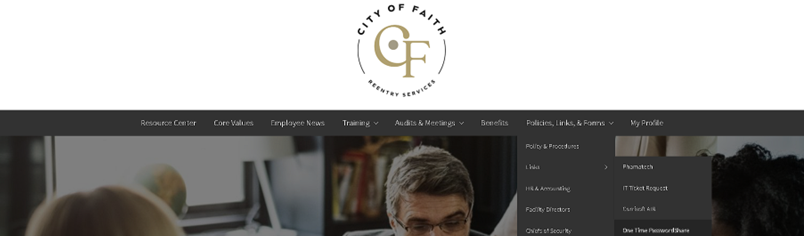
Step 3: Hover your cursor over Policies & Forms
After logging in, hover your cursor over the Policies & Forms tab. This will reveal a dropdown menu with different categories of forms.
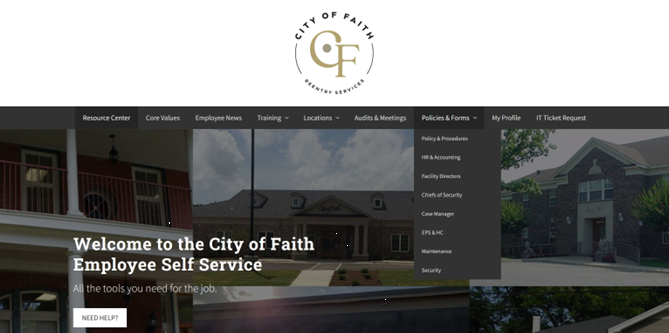
Step 4: Click the Group your job description falls under
Click on the group that your job description falls under. This will give you access to the forms that are relevant to your job.
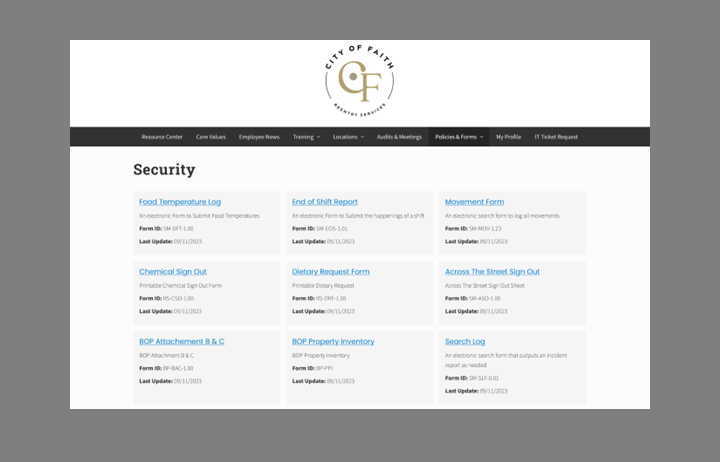
It is important to note that everyone has access to HR & Accounting forms. Through the HR & Accounting forms, you will be able to make purchase requests, complete HR forms, and submit receipts for purchases.
Step 6: Accessing the forms
Once you are within the page assigned to your job description, you will see forms listed. Each form has a title, description, Form ID, and date of the latest update. Click on the title to access each form.
Step 7: Completing the forms
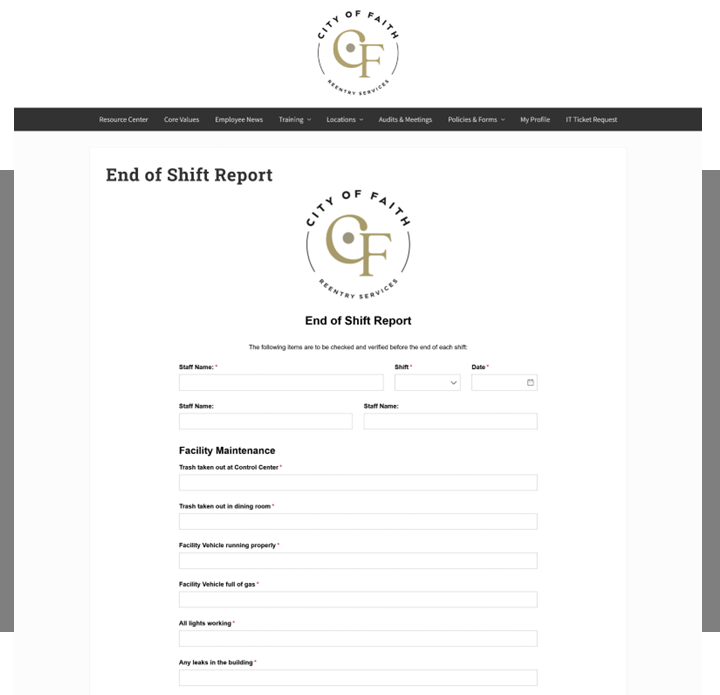
Most forms are digitally embedded forms that will ordinarily submit to your supervisor. These forms are similar to the End of Shift report (Security) and the File Accountability form (Case Mgmt). Once the page loads, complete all the required blanks and click submit or update depending on the requirements of the form.
Some Forms may even require you save a URL for later to update information as needed.
 If you have any questions or encounter any issues while accessing or completing the forms, reach out to the IT Department by submitting a ticket at cityoffaithit.freshdesk.com. From there, you will use your COF email via google or Cofess Info info to log in and submit a ticket.
Alternatively Just go to Cofess and Hit the help icon in the bottom right of the screen.

Next week I’ll review some specific forms that affect us on the daily and make sure we all understand how those should be filled out!
—
![SOLVED] Your best Internet Meme Security Awareness poster - IT Security](https://s3.amazonaws.com/cdn.freshdesk.com/data/helpdesk/attachments/production/151054141930/original/imtBRemFX1r7nxEzBi4j2aUf1AA3tbdqqw.jpeg?1703010074)
![Security Awareness Memes | CarmeloWalsh[.]com](https://s3.amazonaws.com/cdn.freshdesk.com/data/helpdesk/attachments/production/151054141935/original/DEu3QKSGbR1q46N1RJs4LXjhhrabErKWeg.png?1703010074)